Huawei Watch Spotify: Offline Music and Playlist Guide
Want music on a Huawei Watch without keeping the phone beside you? The Huawei guide draws a clear line between Spotify control and true offline playback. Spotify itself does not have a native Huawei Watch app, and Spotify songs cannot be downloaded to the watch. Offline listening instead uses local audio files transferred through Huawei Health.
Spotify control and offline music are different
When Spotify is playing on a Huawei phone, the watch can control it through the Music Card after Control phone music is enabled in Huawei Health. That covers Play, Pause, Skip, and Volume.
For anyone looking up huawei watch spotify, the important distinction is that this control does not turn Spotify into a standalone watch app. Offline playback on the watch uses local audio files, not downloaded Spotify tracks.
Transfer MP3 files through Huawei Health
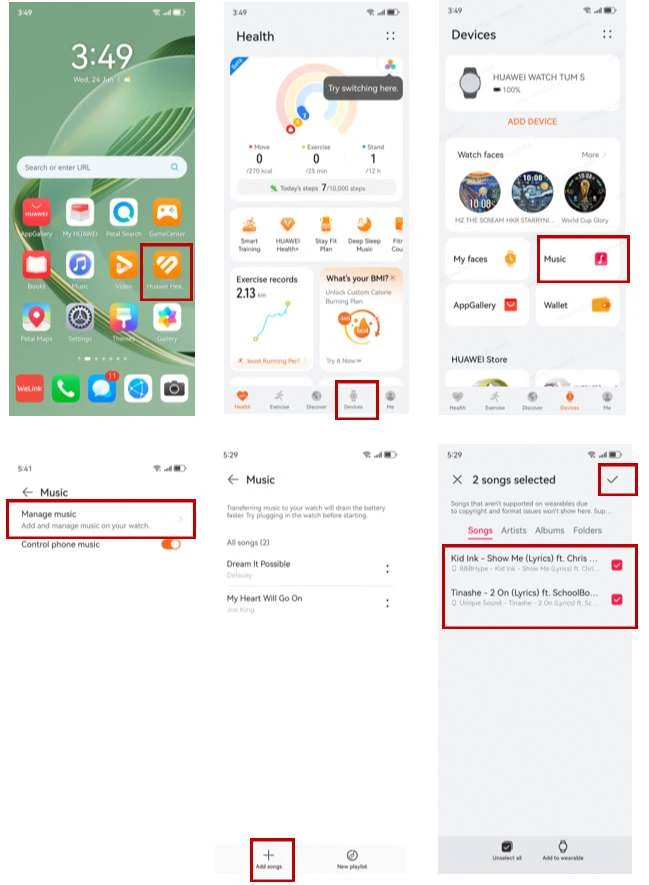
First, download or save an audio or MP3 file on the phone. Then open Huawei Health, go to Devices, select Music, tap Manage music, choose Add songs, select the audio file, and tap the check icon to transfer it.
This process places local music on the watch so it can be played independently of Spotify. It is the offline route described in the source page. Before relying on the watch alone, finish the transfer in Huawei Health and confirm that the song appears in the watch Music app. That keeps the offline setup separate from phone-based Spotify control.
Create playlists before leaving the phone behind
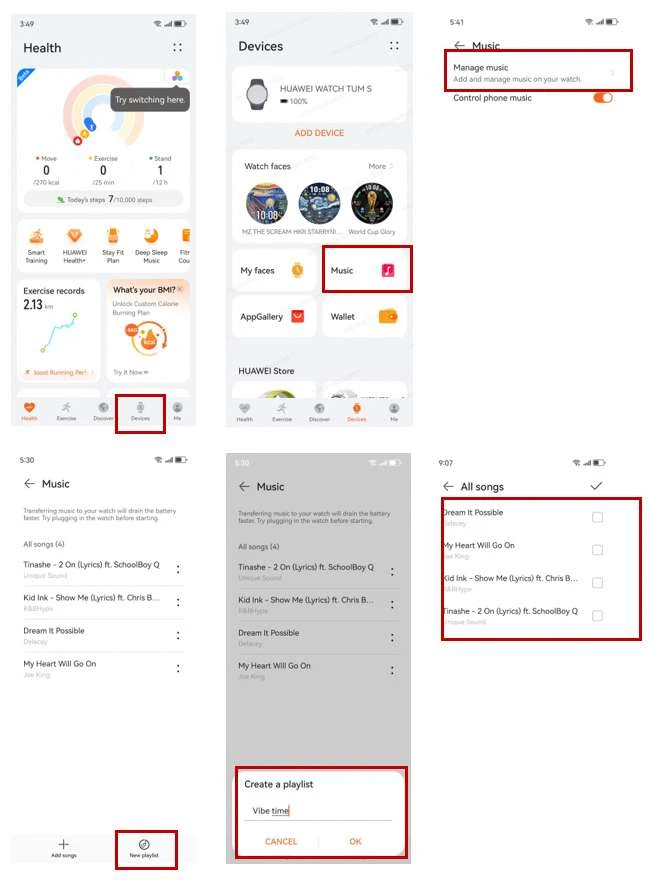
Huawei Health also lets you organize transferred songs into playlists. Go to Devices, select Music, open Manage music, choose New Playlist, enter a name, and select the songs you want to include.
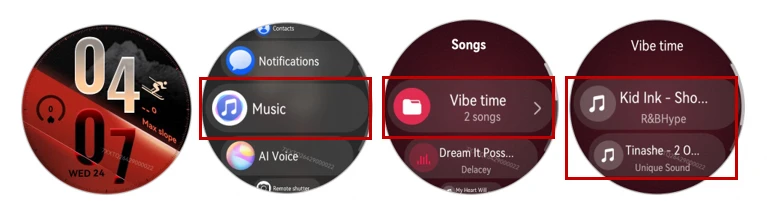
After the playlist is created, open the app list on the Huawei Watch and search for Music. The playlist and transferred audio should appear there for playback.
Listen without the phone
The page notes that local music can be played without the phone, with Bluetooth headphones required. This is the setup to use when you want audio during an activity where carrying the phone is inconvenient.
Because the files are stored on the watch, this local playback route is separate from Spotify and does not depend on a phone-side Spotify session.
Do not treat local playback as Spotify downloads
The guide specifically answers the offline Spotify question: downloading Spotify songs to a Huawei Watch is not supported. Moving an MP3 to the watch through Huawei Health is a different process and should not be described as saving a Spotify track.
Model differences matter
The source gives a simple comparison. Huawei Watch 3, 4, and 5 Series are described as best for music control plus storage. Watch GT 2, 3, 4, and 5 Series support the Music Card and offline sync. Watch Fit Series is listed as basic music control only.
That means the exact offline experience can depend on the watch model, while Spotify itself still has no native wearable app across the models discussed.
Huawei Music as the native alternative
For users who want a native music option on the watch, the page names Huawei Music as the best alternative to Spotify because it is native and can handle offline or local playback.
The huawei watch spotify question therefore has two answers depending on the goal. If you want Spotify, play it on the Huawei phone and control it from the watch. If you want phone-free offline audio, transfer local files through Huawei Health and use the watch’s Music app.